Save bookmark
In the mobile interface, you need to access Self‑reporting via a link. You can then save it as a bookmark to create a shortcut on your mobile home screen.
When accessing Self‑reporting via the link on a mobile device, it works on all web browsers.
Apple (In this example Safari webb)
1. Go to kth.medvind.visma.com/MvEmployee
2. Log in and authenticate via Authenticator (you will need to do this every time).
3. Click on the three dots

4. Tap the Share icon (square with an arrow pointing upwards in the bottom menu bar)

5. Click on “…”

6. Select “Add to Home Screen”

7. Name the shortcut, select that it should open as a web app, and tap “Add”

Android (In this example Chrome)
1. Go to kth.medvind.visma.com/MvEmployee
2. Log in and authenticate via Authenticator (you will need to do this every time).
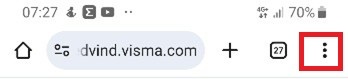
3. Open, for example, the Chrome browser, go to the desired web page, and tap the three dots in the top right corner
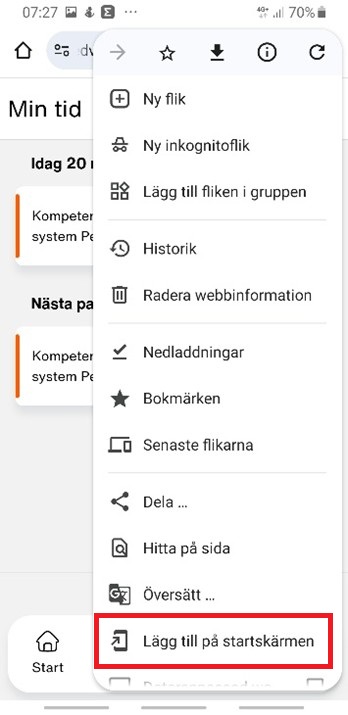
4. Select “Add to Home screen”
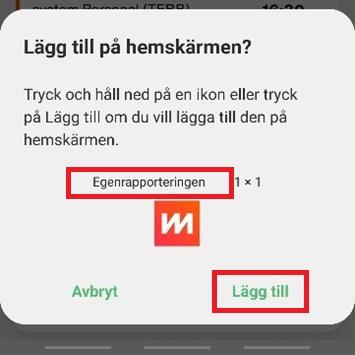
5. Choose a suitable name and tap “Add”. The shortcut will then be added to your home screen