
Get started with KTH-Expense
In KTH-Expense you create expense reports, register expenses and travel reimbursements, and then link these to your reports. The reports are reviewed and then sent to your manager for approval. The reimbursements are paid once a month, together with your monthly salary. The system is available as an app and as a web version.
Log in to the web version
You log in to the web version through the link below:
You can also log in via the personal menu at the top of KTH's web, then select "Services" and then "Expenses & travel reimbursements (KTH-Expense)":

Note: On 24 February 2026, KTH will introduce a new login routine for the central login service with a multi-factor authentication (MFA). Login requires your username, password, and approval via an app on your mobile phone. For more info: Enable multi-factor authentication, MFA
Download the Hogia OpenHR Ulägg & Resa app
Download the app from the App Store or Google Play to your mobile:
Through the app, you can photograph your receipt. The receipt is analyzed, and the expense category, amount, VAT and currency are automatically suggested. You can then fill in the remaining information if the app has not done it for you.
You can also register allowances (per diem) and mileage. Managers can certify directly in the app.
Dashboard
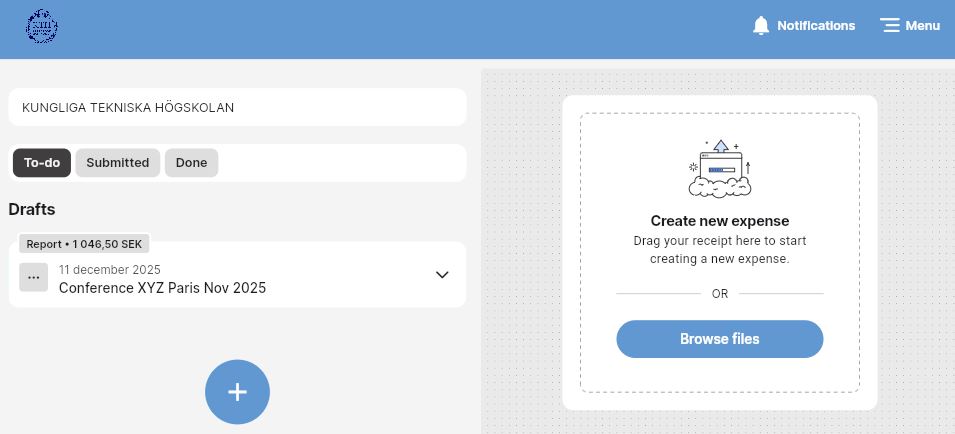
On the dashboard you will get an overview of your expense reports and your transactions (expenses, mileage, per diem):
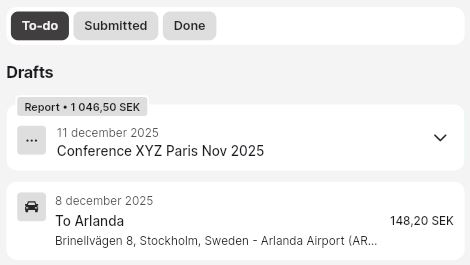
You can also see the status of your expense reports:
-
To-Do: Here you will see expense reports that are preliminary or rejected as well as your registered transactions
-
Sent: Here you will see expense reports that have been sent for review or approval
-
Done: here you will see expense reports that have been sent for payment.
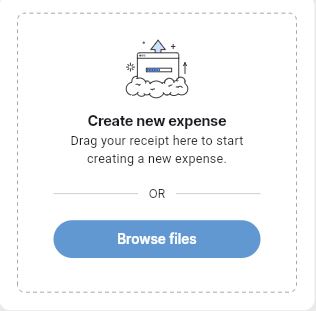
You create new expense reports and transactions (expense, mileage, allowance) using the plus sign icon. You can also create a new expense by dragging or uploading a receipt:
At the top of the right menu there are two folders:
In "Notifications", all messages that you receive, for example when your expense report is approved, are collected.
In "Menu", you can, for example, change the language, connect your email address to your profile so that you can email digital receipts to the system or change app settings:
Change language on the website
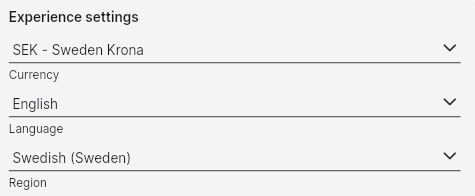
On the website, change the language under "Menu" and "Settings" at the top right of the menu. Click the arrow next to "Language" and select the language you want to change to:
Change language in the app
The language in the app is controlled by the language and region you have set on your mobile phone. If you have selected Swedish on your mobile phone, the language in the app will be Swedish. If you select a language other than Swedish, the app will switch to English.
Email receipts
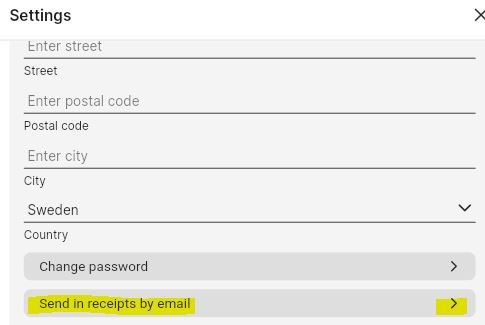
Under "Menu" you can read about how you can email your digital receipts directly to the system.
-
Select "Send in receipts by email"
-
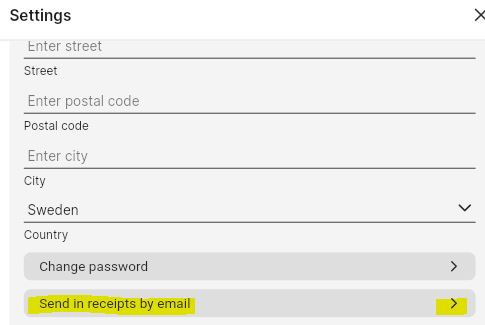
Then follow the instructions as below:
Other functions in Menu
Settings
-
Personal details: the data comes from the HR system and should not be changed.
-
Change password: login to the system is done with SSO login, so this function is not used at KTH.
-
Send in receipts by email: see higher up in the guide.
-
Bank details: not used at KTH.
-
Experience settings: there you only adjust the language, currency and region should not be changed.
-
App settings: here you can change the color theme from light to dark theme. Other features should not be changed.
-
Notification settings: here you choose what type of messages you want to receive from the system.
Managers also have the option to add a temporary approver using the "Approval settings" function, see guide for approvers.
Policy
Here you will find information about how to find our films, guides and rules as well as KTH's travel policy.
Help & Support
Not used at KTH. If you experience problems with the system, please contact the KTH-Expense support
Feedback
As above.
Terms and conditions
GDPR acknowledgment.
Sign out
Here you log out of the system.