Install software via Software Center
In the Software Center, users of KTH Windows can install software themselves. On this page you will find neccessary instructions.
Software installations and updates
KTH Windows uses Software Center for installing programs and for some updates.If you work remotely, you need to be
connect to VPN in KTH Windows
for Software Center to work.
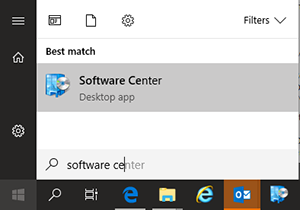
- Start Software Center by searching for "Software Center" from the Start Menu or open the Start Menu and click on the Software Center Ikon (simmilar to the one on the picture below) that is located under the menu KTH Windows Applications
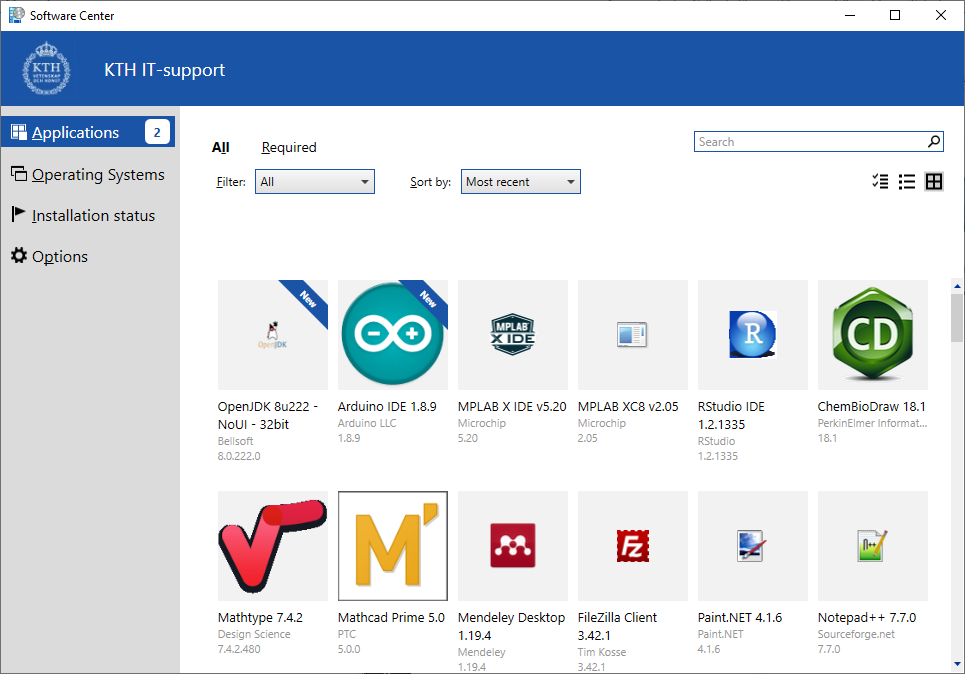
- A list of software is presented to choose from. If you can´t see the software you looking in the presented list you can try and
search for it
.
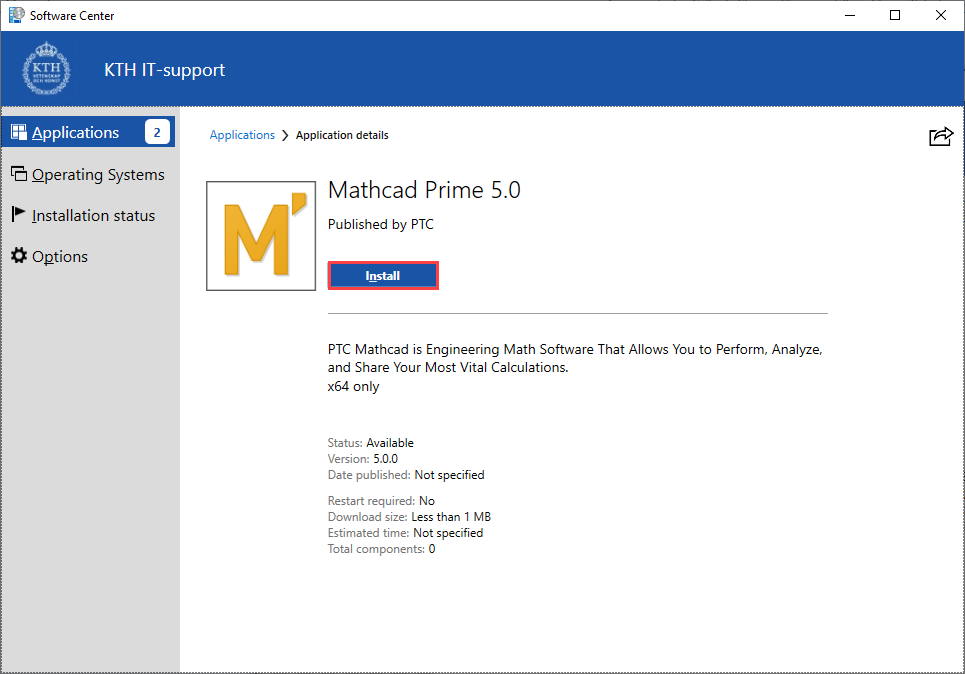
- When you have found the software you want to install in the list, then click on it in the list and then install it by clicking install.
Dialog box to close active program during installation
Sometimes when you are installing a software you can see the following alert box pop up. This means that program/s need to be closed in order for installation to continue. In this example, Firefox is up and running and requires to be closed before the software installation will continue.
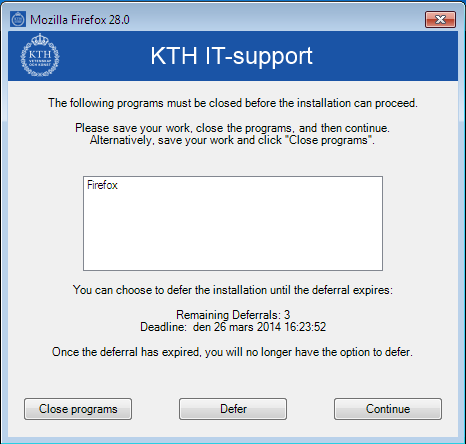
One of the advantages is the ability for you as a user to choose when updates will install without having to reboot the computer straight away.
Accordingly, you as a user have the ability to defer the installation if the opportunity does not suit you for various reasons, as in this case defer and continue to work with Firefox until you want to close the program and then continue with the installation.
In many cases though, you as a user will not notice that the programs are being updated, this is done undetectably.
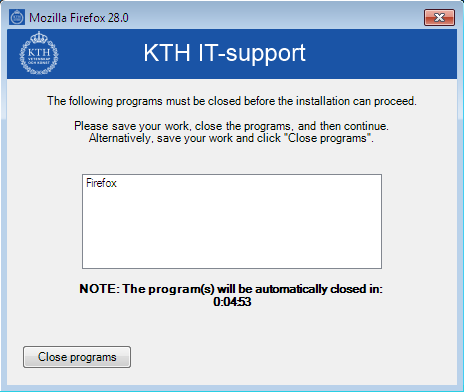
After you have clicked Close programs, the application will automatically update whilst you are logged in to KTH Windows. By this point, you do not need to do anything.
If the software is not visible in Software Center
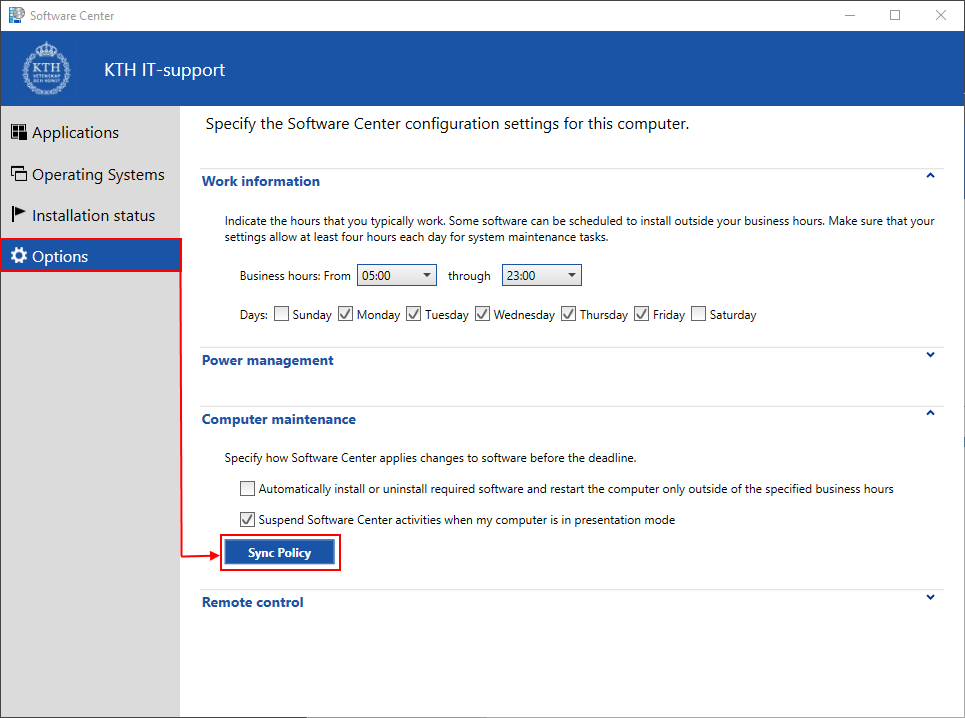
If you do not see any programs at all in the Software Center, go to the Options tab and click on Sync Policy which is located under Computer maintenance.
If the application is still not visible please contact it-support@kth.se .