
Link your transactions to an expense report in KTH-Expense
There are two ways to link transactions (expenses, mileage and/or per diem) to an expense report.
We recommend that you first create an expense report, then register your transactions, which you can easily link to your report.
If you already have a preliminary expense report
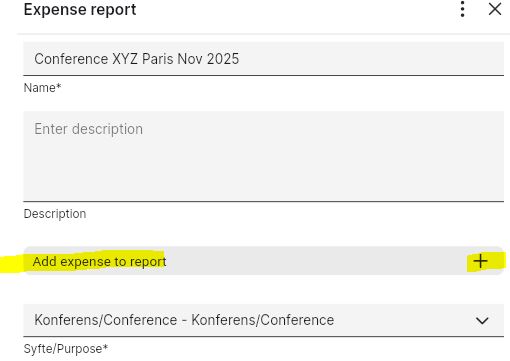
1) Open the expense report, click "Add expense to report":
2) Check the transactions you want to link to the expense report:
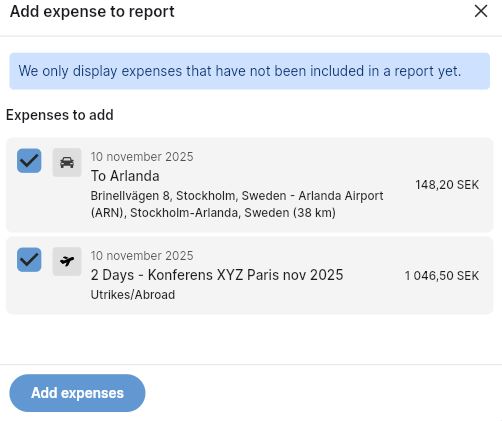
3) Press "Add expense" and save.
If you have registered or create transactions
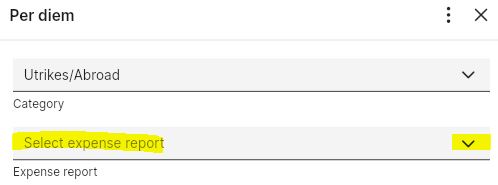
Open/create a transaction, in the "Expense report" field you can link the transaction to an existing expense report or you can create a new expense report:
Note: Try to avoid linking transactions with different approvers in the same expense report, as this can delay the approval flow and delay the payment of your expenses.