
Register allowance (per diem) abroad, trip by plane or boat, in KTH-Expense
How to register
You register a new allowance (per diem) using the plus icon on the dashboard:
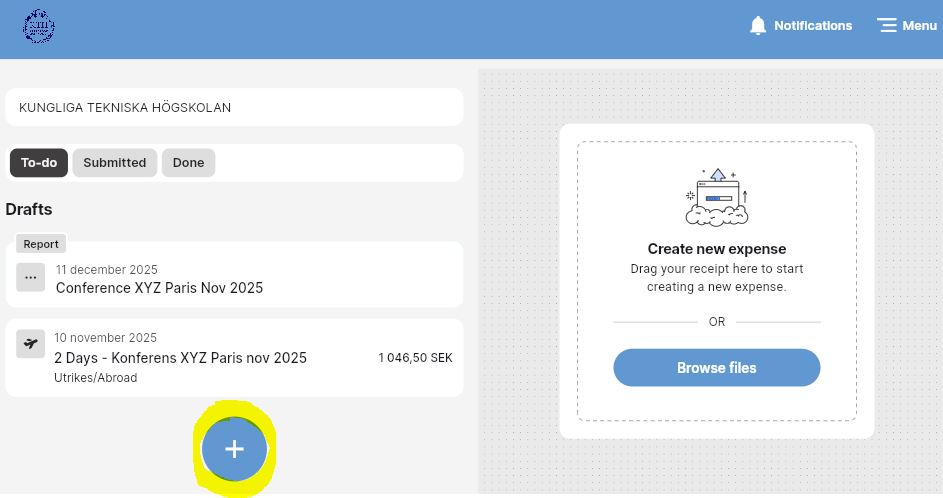
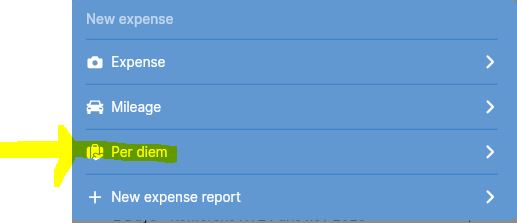
1) Press "+", then select "Per diem":
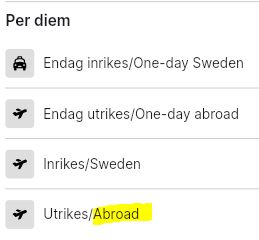
2) Select "Abroad":
3) Fill in the following fields:
-
Expense report: here you can choose to add the allowance to an existing expense report (that you have not submitted for approval) or create a new expense report.
-
Description: country, city, and date of your journey
4) Add now the "Travel route":
-
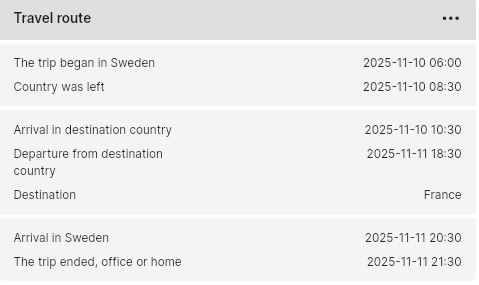
Trip began in Sweden: enter the date/time when you left home or KTH.
-
Country was left: enter the date/time when the plane took off from the airport.
-
Destination: select the country of destination
-
Arrival in destination country: enter the date/time when the plane landed in the country of destination
-
Departure from the destination country: enter the date/time when the plane took off the airport
-
Add stop: add another country if you went to different countries (note: does not apply to transfers without overnight stays)
-
Arrival in Sweden: enter the date/time the plane landed in Sweden
-
The trip ended, office or home: enter the date/time when you arrived back home or to KTH
-
Save: press to save your travel.
You will now see a summary of your route:
5) Set food and accommodation: here you can report whether you have received meals that you did not pay for yourself during the business trip. If you haven’t received meals, then you don’t need to do anything.
-
Breakfast, lunch, dinner
Unselect: here you can uncheck your meal deduction if you have filled in incorrectly before.
Entertainment: e.g. you have been invited by an external participant, or you have invited an external participant.
Included in accommodation: breakfast was included compulsorily in the price of the hotel room (i.e. you could not opt out of the price)
Included in ticket price: meal was included compulsorily in the ticket price (i.e. you could not opt out of the price), e.g. train ticket.
Meal benefits: e.g. breakfast has been paid for by KTH or was included in the conference fee.
None: you paid for your meal yourself
-
Accommodation: selected by default. If you did not stay at a hotel but stayed privately (note: does not apply during holiday/days off), then deactivate the button and you will receive a night allowance.
-
Save: press to save your meals.
You will now see a summary of your meals:
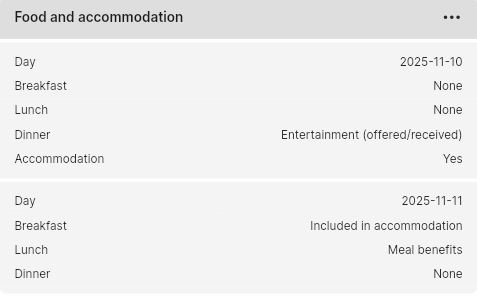
6) Complete the posting as follows:
-
Cost center: filled in by default. Can be changed to another cost center if necessary, using the dropdown list.
-
Project: Select project number using the dropdown list or by searching for the number.
-
Activity: Not mandatory! Select from the dropdown list if the project number is linked to an activity code.
-
Your approver: Your approver is filled in by default. Here you can change to another approver, if necessary, for example if the allowance is to be posted to another department or school. In the search field, you can search for the name of the approver
7) Attachments: here you attach documents, e.g. itinerary, hotel confirmation, program, invitation, agenda and boarding cards (EU projects). Note: Image format or pdf only.
8) Press "Save" to save your per diem reimbursement.
9) Saved allowance is now visible on the dashboard under the heading “Drafts” in the “To-do” folder.
9) If you have already linked the allowance to an expense report, you can click on the report and choose to submit it when all expenses and allowances are added to the same trip.
Note
-
Departure from country and arrival to country are stated in local time in each country. You do not state if you had a stopover due to a transfer (except if you stayed overnight in the transfer country).
-
Read more about meals with or without tax benefits here: Meals with or without tax benefits?
-
Read more about allowance rules here: Important information about expense reports and reimbursements
-
Read more about how to register allowances during holiday/days off here: Register allowance for business trips with holiday/days off in KTH-Expense
-
You can find the allowance amounts here: Domestic and foreign allowance amounts
-
If you are stationed abroad (URA), the allowance has to be reduced by 20% for business trips within your own country of stationing.
-
If you and your manager have agreed on a lower allowance, then you register an expense with expense category "Allowance reduction" with a negative amount. Instead of scanning a receipt, you scan an explanation of why the allowance should be reduced.