
Register mileage in KTH-Expense
How to register
You register a new expense using the plus icon on the dashboard:
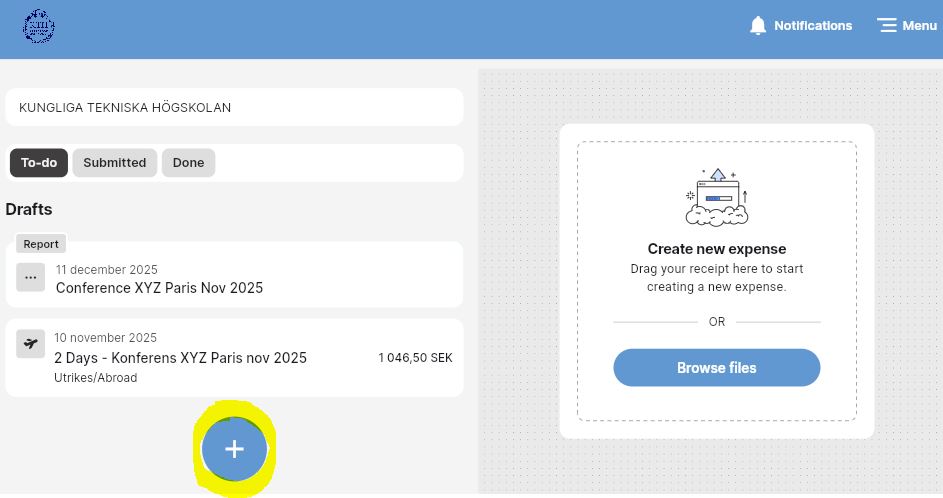
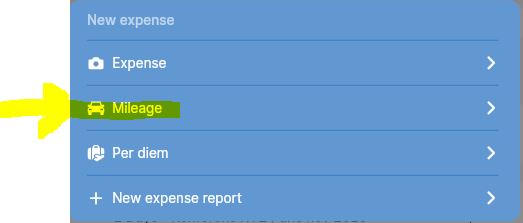
1) Press "+", then select "Mileage"
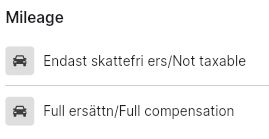
2) Choose type of mileage:
-
Not taxable: you receive the tax-free mileage allowance. the amount is determined by the Swedish Tax Agency.
-
Full compensation: in addition to the tax-free mileage allowance, you also receive a taxable mileage allowance which is negotiated locally at KTH for employees only, currently 14 SEK per 10 km.
3) Fill in the fields related to the car trip:
-
Description: Purpose of the car trip and the reason why you needed to use your own car.
-
Travel date: enter the date of your trip.
4) Now press "Add travel route" with the plus sign:
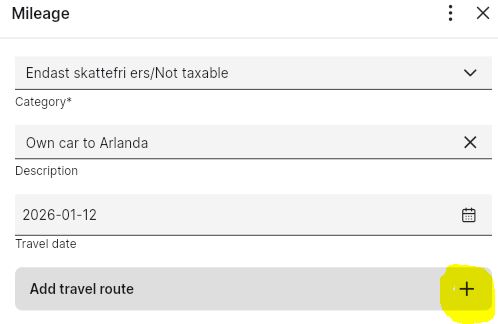
5) Then fill in the following fields:
-
Origin: here you register the address from where you left.
-
Destination: here you register where you went.
-
Via: The map shows the shortest route in km according to Google maps. If you have driven a different distance, you can manually add another distance by pressing “+”. You can also choose whether it was a round trip. The number of km is calculated automatically.
-
Fuel type: select type
-
Round trip: activate if you went there and back.
-
Save: the number of km is calculated automatically
6) Fill in the other information:
-
Vehicule type: always private car, cannot be changed)
-
Cost center: filled in by default. Can be changed to another cost center if necessary using the dropdown list.
-
Project: select project number using the dropdown list or by searching for the number.
-
Activity: Not mandatory. Select from the dropdown list if the project number is linked to an activity code.
-
Your approver: Your approver is filled in by default. Here you can change to another approver if necessary, for example if the expense is to be posted to another department or school. In the search field, you can search for the name of the approver.
-
Select expense report: here you can choose to add the allowance to an existing expense report (that you have not submitted for approval) or create a new expense report.
7) Attachments: here you can attach documents in addition to the scanned receipts. Note: Only images or pdf.
8) Comment: here you can enter more information for the reviewer or approver, for example when your expense report was sent back to you.
9) Press "Save" to save your mileage reimbursement.
10) Saved mileage is now visible on the dashboard under the heading “Drafts” in the “To-do” folder.
11) If you have already linked the mileage to an expense report, you can click on the report and choose to submit it when all expenses and allowances are added to the same trip.
Note:
-
Transportation by your own car should be used sparingly according to KTH’s guidelines on meetings and travels.
-
It is important to state why you used your own car.
-
KTH does not reimburse car travel from your home to your place of work (private travel).
-
If you are driven by, for example, your spouse in your own car to Arlanda, then KTH reimburse one way, i.e. from your home to Arlanda. KTH will also reimburse if you are picked up at Arlanda after your business trip. Good to know before you register your mileage reimbursement.