
Log in to Zoom
Quick reference guide about how to login into the Zoom application for the first time.
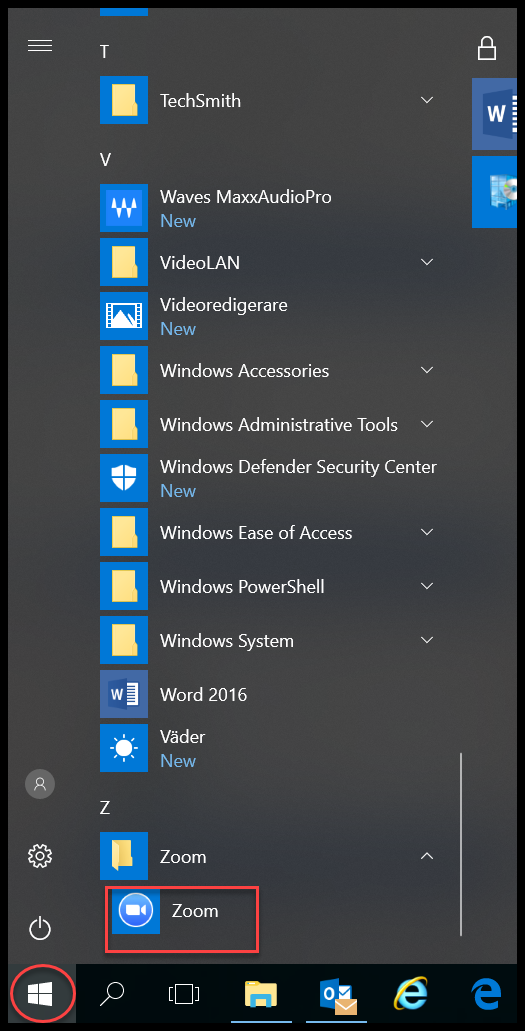
- Start the Zoom application
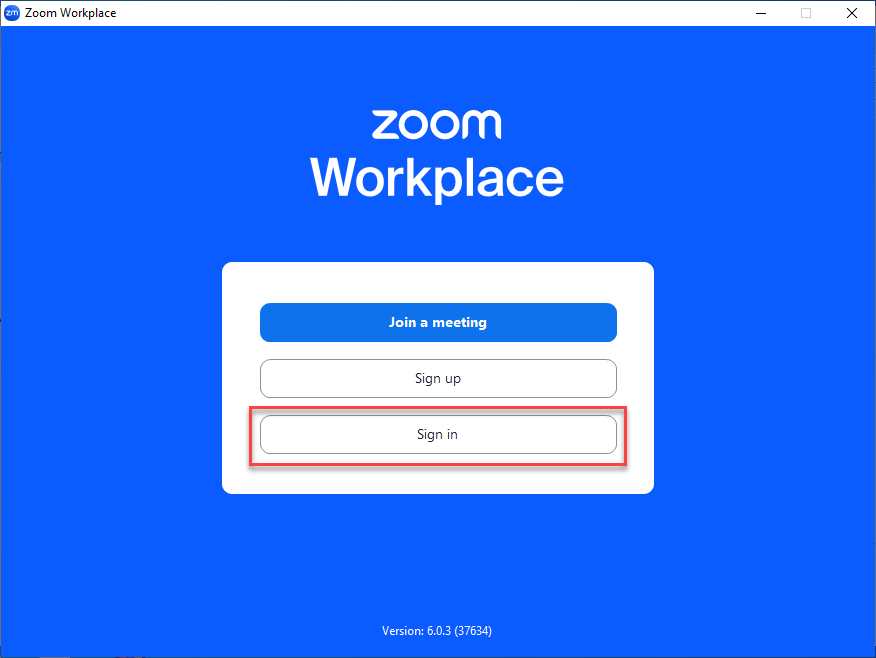
- Select "Sign In"
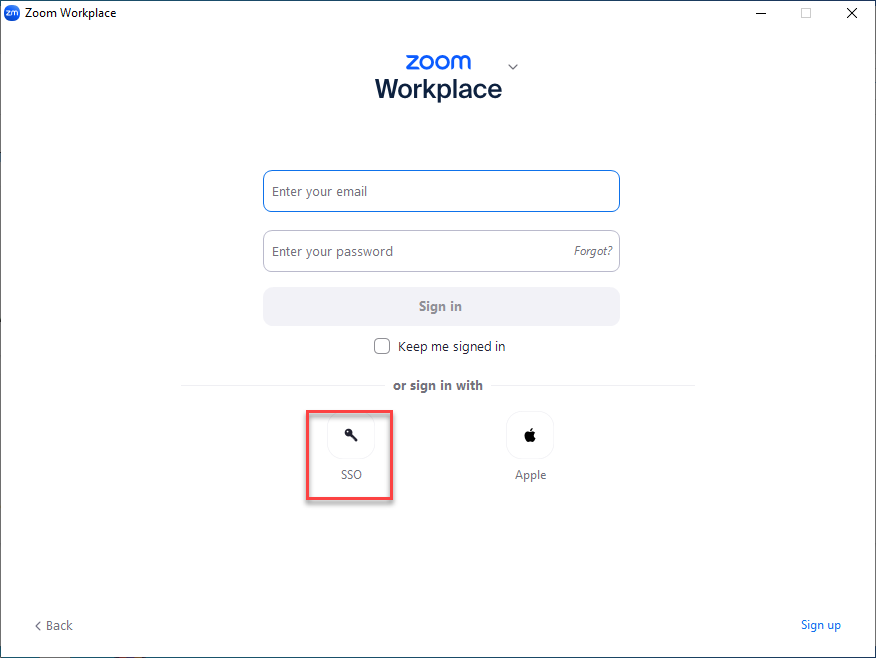
- Choose ”Sign in with SSO”
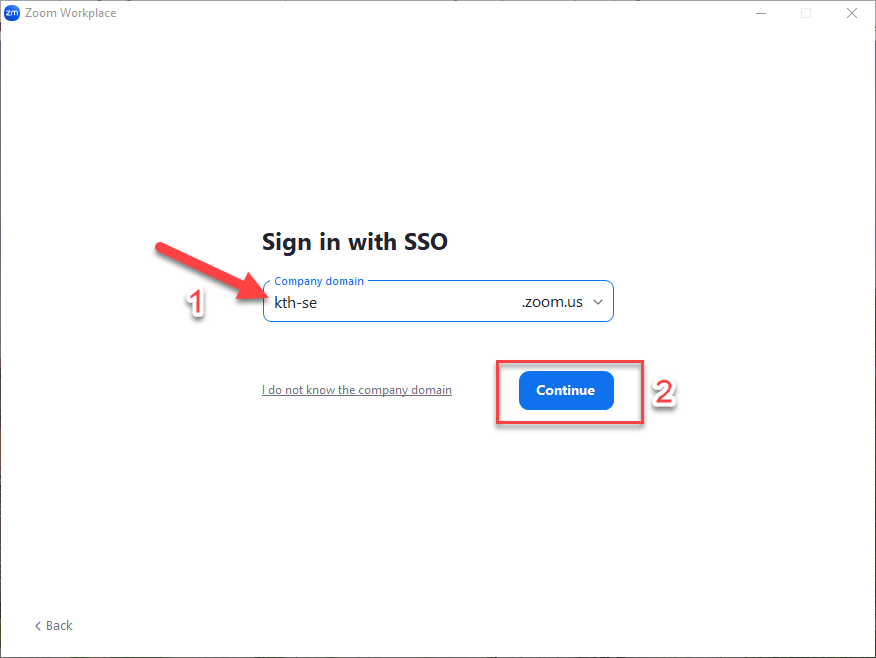
- Type "kth-se" and press Continue
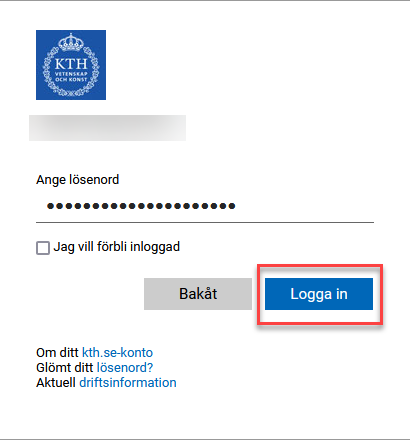
- Log in with your username (without @kth.se) and password for your KTH account
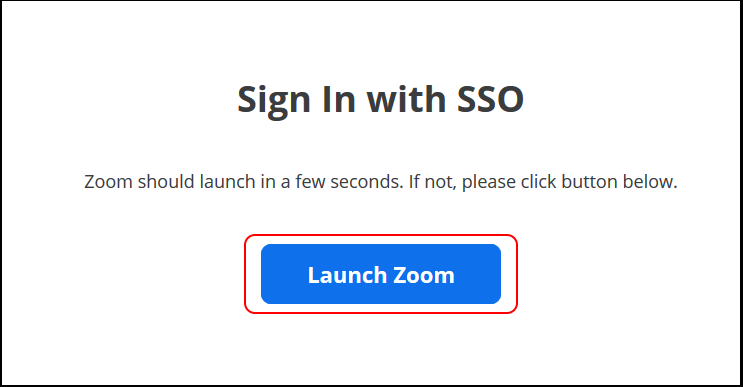
- Accept the agreement and then select ”Launch Zoom”
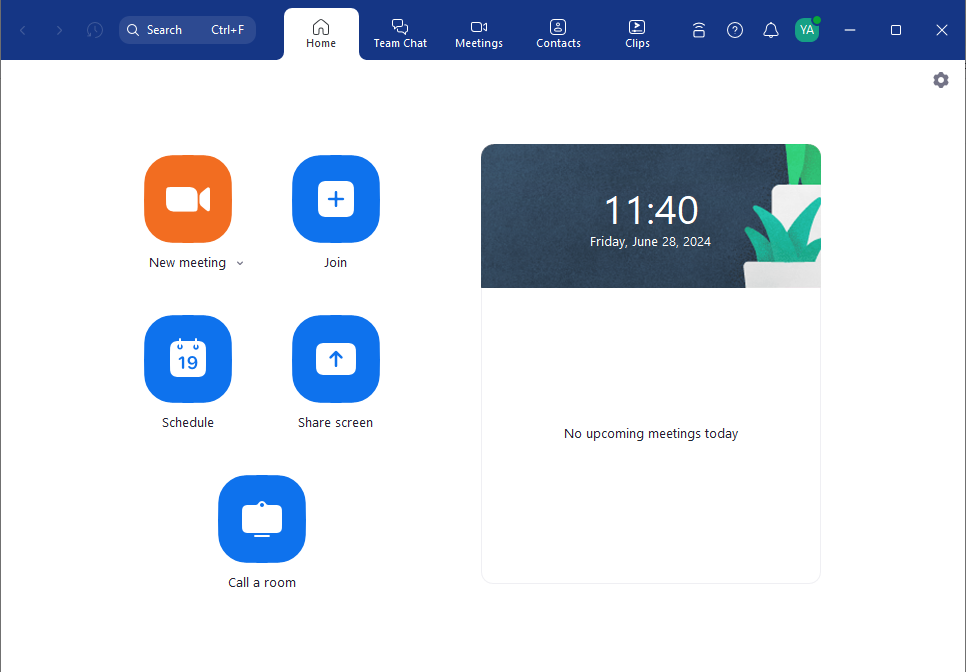
- Zoom will now open, and you will access the main page
- Check out our guides on getting started with Zoom, Web meeting .