Delegate Role in KTH-HR
You can delegate your role in KTH-HR if you are temporarily absent. You can control which role and organization the person should have access to, as well as the time period for the delegation. As a manager, you can delegate your role to another manager.
If the person needs access for a longer period, it is easier to submit an access request instead. See more under the section Access Rights.
1. Hoover the mouse over the icon to your right and click on “Delegations”

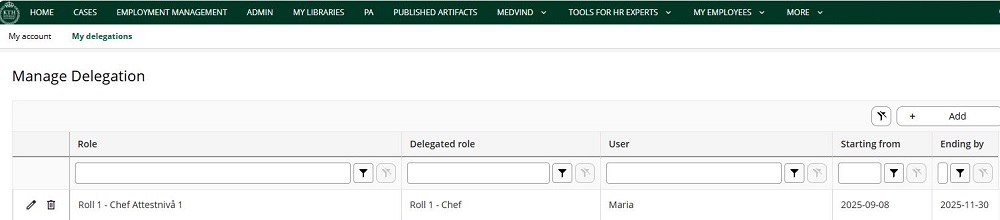
2. Here you can view your delegations. A delegation means you give the rights of your role to another user. The delegation is date-controlled, and you can grant access to all or selected reporting units. To delegate, click “+ Add”

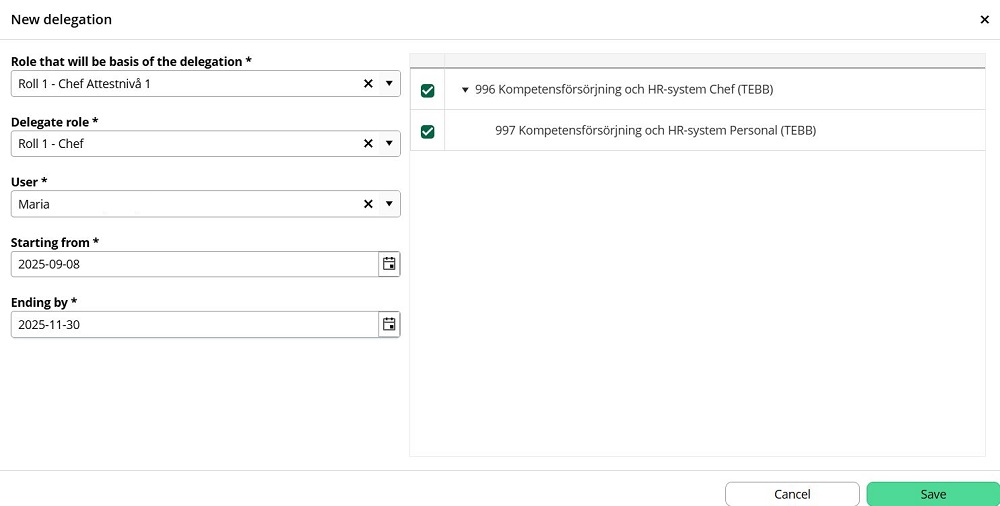
3. Fill in the fields and select which organization to delegate. Then click “Save”
Role that will be basis of the delegation – Select the role you wish to delegate
Delegate role – A list will show what the selected role can delegate; check the reporting units the delegation should apply to
User – A list of users you can delegate the role to; check the relevant person
Starting from – Enter the date from which the delegation should begin
Ending by – Enter the date when the delegation should end
4. You will now see the delegated role in the list.
The person who has been delegated the role can view this here:
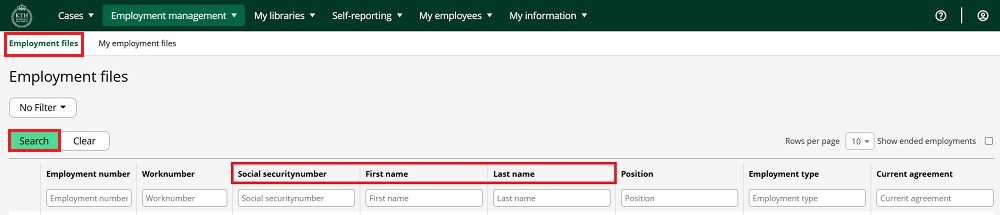
1. Hoover the mouse over “Employment management” and click on "Employment files"

2. Search for yourself
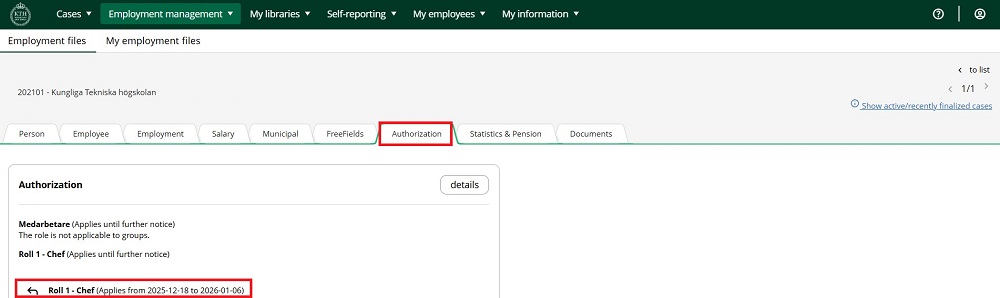
3. In the “Authorization" tab, you can see your access rights. Delegated permissions are marked with an arrow and a date range